
Introduction
The Sparkplug Data Collector allows Timebase to ingest structured, typed, and stateful MQTT data based on the Sparkplug B specification. This collector is designed for environments where reliable equipment state, accurate metric reporting, and minimal polling overhead are important. Sparkplug adds order and meaning to raw MQTT messaging by defining a strict topic structure, lifecycle events, and strongly typed payloads. This guide explains the concepts behind Sparkplug, the benefits of using it, and how to configure every field in the Timebase collector, including Logging Session Properties and Target Historian settings.
Understanding Sparkplug B
Sparkplug B turns stateless MQTT messaging into a predictable and stateful industrial communication method. Sparkplug uses a consistent topic hierarchy, typed metric structures, birth messages to announce a complete dataset, and death messages to signal that a node or device has gone offline. Sparkplug also requires devices to send full datasets at startup, followed by delta updates, which keeps bandwidth low while ensuring all metric values remain current. Timebase uses this structure to create accurate historical records without polling or custom request logic.
How the Sparkplug Collector Works
The collector connects to an MQTT broker, subscribes to Sparkplug namespaces, interprets birth, data, and death messages, and writes these metrics into a Timebase Historian dataset. Timebase handles ordering, deduplication, compression, and persistence. The Collector can authenticate with the MQTT server using basic MQTT credentials. Subscriptions determine what the collector listens to, while filters allow you to exclude unwanted metrics so only meaningful data reaches the historian.
Reference the article General Configuration of the Data Collector to learn how to target a historian and dataset and apply security. This article focuses on the specific configuration of the Sparkplug data type.
Sparkplug Configuration
Connection
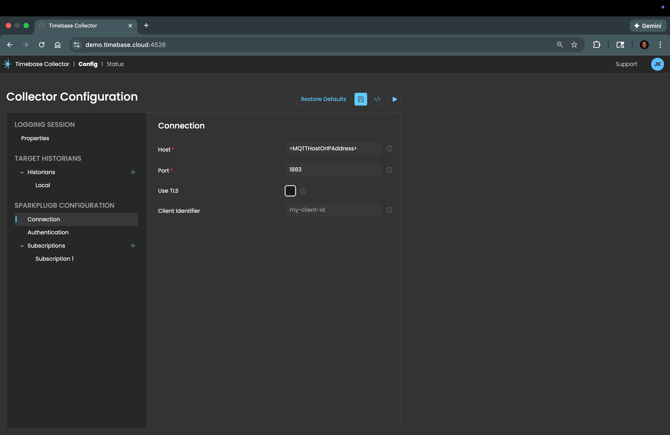 Host: The DNS name or IP address of the MQTT broker that publishes Sparkplug messages; the collector connects here to receive data.
Port: The MQTT port used by the broker; typically 1883 for non TLS and 8883 for TLS.
Use TLS: Enables encrypted MQTT communication with the broker; required when the broker enforces TLS for Sparkplug or MQTT connections.
When TLS Cert is Enabled:
Certificate File Path: The full path to the client certificate file required for mutual TLS; used when the broker requires the collector to authenticate with a certificate.
Certificate Password: The password that unlocks the encrypted certificate file.
Certificate Thumbprint: The unique fingerprint of a certificate installed in the system certificate store; used instead of a certificate file path.
Store Location: The certificate store location such as CurrentUser or LocalMachine to search when using a thumbprint.
Store Name: The specific certificate store such as My, Root, or CA where the certificate is located.
Allow Invalid: Allows the collector to proceed with the TLS handshake even if the certificate is expired, self signed, or invalid; suitable only for non production environments.
Authentication
Username: The MQTT username required by brokers that enforce user based authentication or ACLs.
Password: The password associated with the MQTT username.
Subscriptions
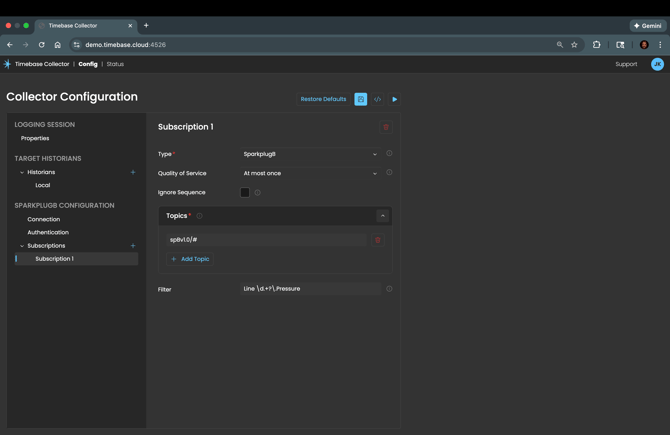
Type: Specifies the Sparkplug message format; SparkplugB is the correct (and currently only) choice for Sparkplug B encoded metrics and lifecycle events.
Quality of Service: Defines the MQTT delivery guarantee for subscribed messages.
|
QoS 0 - At Most Once |
The broker delivers messages on a best effort basis with no retries, which makes QoS 0 the lowest latency option and useful for high-volume data where occasional loss is acceptable, such as fast changing values that update many times per second or noncritical diagnostics. |
| QoS 1 - At Least Once | The broker guarantees delivery but may deliver a duplicate, which makes QoS 1 the default choice for most industrial data because it balances reliability with performance and ensures metrics arrive even on noisy networks while not incurring the overhead of full transaction semantics. |
| QoS 2 - Exactly Once | The broker and client complete a full handshake to ensure each message is delivered one time only, which makes QoS 2 ideal for state changes, production counts, batch events, or any metric where duplication would create incorrect totals or inaccurate historian records, though it comes with higher latency and processing cost. |
Ignore Sequence: Determines whether the collector ignores Sparkplug sequence numbers; helpful when devices do not strictly follow Sparkplug sequencing rules.
Topics: A list of MQTT topic patterns that define which Sparkplug messages are processed. Wildcards help capture entire groups or nodes when architecture is dynamic or evolving.
More About Sparkplug Topic Structures and Wildcards
Sparkplug topics follow this pattern: spBv1.0/GroupID/NodeID/DeviceID.
- GroupID identifies a site, area, or logical grouping.
- NodeID identifies the device gateway or logical controller.
- DeviceID represents a specific device or metric source.
Timebase can subscribe to narrow or broad topic namespaces depending on how much of the environment you want to ingest.
Wildcards help you subscribe to exactly the data you want without having to list every device or node manually. Wildcards let you capture entire groups of devices, simplify onboarding of new equipment, and reduce the need to constantly update topic lists.
The + Wildcard: The + wildcard matches exactly one level in a topic path. If a segment may vary but stays within a single level, use +.
Example: spBv1.0/Plant1/+/Filler01 matches all nodes in Plant1 that contain a device named Filler01.
Example: spBv1.0/+/Node01/# matches Node01 in all groups.
The # Wildcard: The # wildcard matches zero or more levels and must always be at the end of the topic pattern. Use # when you want to subscribe to everything under a certain point in the hierarchy.
Example: spBv1.0/Plant1/LineA/# captures every device, metric, and event published from LineA.
Example: spBv1.0/+/+/# captures all Sparkplug traffic across all Groups and Nodes, which is helpful for initial discovery or troubleshooting
Filter: A .NET regular expression (regex) used to omit metrics from logging; the collector evaluates the regex against each tag name and excludes any tag that matches the pattern, allowing broad subscriptions while preventing unwanted tags from being written to the historian.
How .NET Regex Filtering Works
The .NET regex engine matches your pattern against the full metric name provided in each Sparkplug message; if the name matches the pattern, the collector does not log that metric, which helps keep the historian focused on meaningful operational data.
Simple Contains Match
To exclude any metric containing the word Debug, simply enter Debug into the filter.
Prefix Based Filtering
To exclude all metrics beginning with a specific device prefix, use: ^Filler02_.* which removes Filler02_Speed, Filler02_Temp, and all other metrics starting with Filler02_.
Excluding Classes of Metrics
If alarm metrics follow a known prefix such as Alarm_, you can exclude them using: ^Alarm_.* which keeps the historian from filling with high-frequency alarm chatter.
Matching Multiple Patterns
To exclude metrics belonging to either of two prefixes, use: ^(Filler02_|Capper01_).* which uses .NET grouping and alternation.
Using Negative Lookahead
To keep all metrics except those containing the word Test, use: ^(?!.*Test).* which is a .NET negative lookahead pattern and excludes any name containing Test while allowing everything else.
For a online tutorial in regex or to learn more, we recommend the website RegExr - https://regexr.com/
Best Practices
- Subscribe broadly when first evaluating a Sparkplug namespace, then refine with filters.
- Use TLS whenever the MQTT broker or historian is outside a trusted network.
- Keep Client Identifiers consistent to avoid device rebirth loops.
- Use QoS 1 or 2 for production systems.
- Use Pulse authentication when central identity and auditability are required.